How to Connect Microsoft 365 Copilot to Google Drive, Dropbox, and Amazon
Data doesn’t live in just one place. While many of us work in Microsoft 365, business information is often scattered across other platforms like Google Drive, Dropbox, or stored in Amazon S3 buckets.
Until recently, this was a bit of a challenge for Microsoft 365 Copilot. If the data wasn't in the Microsoft Graph (SharePoint, OneDrive, Teams), Copilot simply didn't know it existed. But things are changing fast. Microsoft has officially released Copilot Connectors for these three third-party platform and I’ve been diving into how these can finally break down those annoying data silos and use all the data with your governance and availability in Copilot.
What are Copilot Connectors?
Think of a Connector as a bridge. It allows Microsoft 365 Copilot to "reach out" and index content from external systems into the context of Copilot.
Once connected, Copilot treats that external data, whether it's a PDF in Dropbox or a long list of prospects in Google Drive, with the same "intelligence" as a Word document sitting in your SharePoint. You don’t need to move the files; you just give Copilot a map to find them.
Microsoft is releasing more and more connectors and these are a real gamechanger if you still have data living in multiple places.
Google Drive, Dropbox, and Amazon S3
Microsoft recently announced the GA of 35 new connectors. For most IT admins, the most impactful additions are:
- Google Drive: Perfect for organizations in a "mixed-cloud" environment or when still migrating between those platforms.
- Dropbox: Still a favorite for creative and marketing teams, especially sharing large files with external. Connecting this means your brand assets and external collaboration files are now part of your AI’s knowledge base.
- Amazon S3: This is big for technical teams. If you store massive amounts of documentation or logs in S3 buckets, Copilot can now help you query and summarize that unstructured data without you needing to leave the M365 interface.
Step-by-Step: How to Connect Your Data
To get started, you’ll need to have admin rights to your tenant. Here’s the general flow:
- Go to the Microsoft 365 Admin Center.
- Go to Copilot and in the menu, select Connectors
- Click on + Add. You’ll see a catalog of connectors. Search for "Google Drive," "Dropbox," or "Amazon S3". Or just select one of the other available apps.
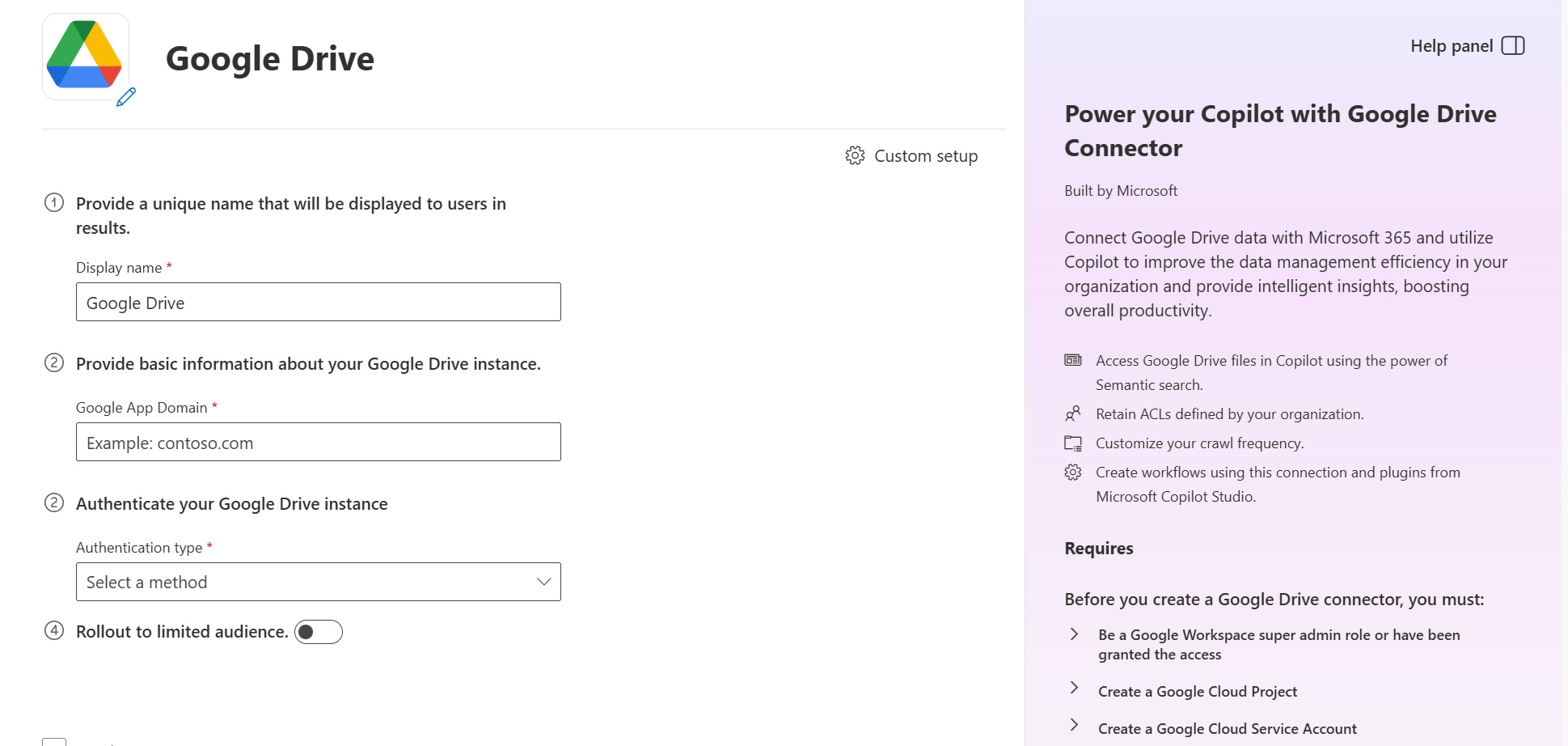
- You will need to provide credentials for the source system. For example, for Google Drive, you’ll need to set up a Service Account in the Google Cloud Console. The setup will show you all the steps and requirements you need to set up.
- After setting up the connector, you will be able to use the newly created connector!
Permissions & Access Control
When you connect external sources, Microsoft 365 Copilot tries to respect the original permissions. However, there are some important nuances to keep in mind for these three platforms:
1. Amazon S3
Currently, due to API restrictions, the Amazon S3 connector only supports the "Visible to Everyone" permission.
Once you index an S3 bucket, all content within that bucket becomes visible to all users in your Microsoft 365 tenant via Copilot and Search.
My Take: Only connect S3 buckets that contain public-facing documentation, internal wikis, or data that has zero sensitivity. Do not connect buckets containing logs with PII or private configurations.
2. Google Drive
Google Drive is much more flexible, but it requires you to map your users correctly. You have two main options:
- Entra ID Mapping: This is the easiest path. If your users' Google emails match their Microsoft UPNs (e.g., user@company.com), it works out of the box.
- Non-Entra ID Mapping: If the emails are different, you’ll need to use regex-based mapping to tell Microsoft which Google account belongs to which Microsoft user.
Always set permissions to "Only people with access to this data source". This ensures that if a user can’t see a file in Google Drive, they won’t see it in Copilot.
3. Dropbox
The Dropbox connector is currently the most robust in terms of security. It strictly enforces the Dropbox permission model.
During the OAuth setup, the connector requests specific "scopes" to view your Dropbox sharing settings, group memberships, and activity logs.
Copilot knows exactly who is in which Dropbox Group. If you remove someone from a Dropbox folder, their access to that data in Copilot is revoked almost instantly.
Conclusion
We are moving away from the search and find era into the "ask and receive" era. By connecting Google Drive, Dropbox, and Amazon S3, you are making Copilot significantly more useful for your users. It’s no longer just a "Microsoft assistant". It's using all your Enterprise data across all sources.
Learn more:
Keep reading
11 Sept 2026
You Can Now Build Apps with Copilot Cowork and Copilot Studio
Have an idea for an internal app? Explore app building in Copilot Cowork and Copilot Studio, with a practical starter prompt and the checks IT should make first.
1 Sept 2026
Microsoft's Responsible AI Report: What You Still Need to Govern Yourself
Microsoft's 2026 Responsible AI Transparency Report explains its own governance work. Customers still need owners, approved use cases, evaluation and monitoring.
5 Aug 2026
Copilot Domain Exclusion: What Changed and What Admins Should Check
Domain Exclusion gives admins more control over web grounding, but its rollout changed. Here is the difference between the control and disabling web search entirely.
Comments
Loading comments…