How to enable & manage Claude AI in Microsoft 365
Microsoft is bringing more model choices to the Microsoft 365 & Copilot. One of the most recent additions is the integration of Claude (Anthropic) models as part of the Microsoft 365 ecosystem.
While this opens up new creative and analytical possibilities, it also raises important questions about data residency, compliance, and how you, as admin, can keep a grip on where your data is being processed.
In this post, I’ll dive into what this means for your organization, why EU-based companies should pay close attention, and exactly how you can manage this access to scope to specific users and groups.
What is Claude in Microsoft 365?
Microsoft is moving toward a "multi-model" approach for Copilot. Instead of relying only on OpenAI’s GPT models, Microsoft is integrating Anthropic’s Claude models as a Microsoft subprocessor.
This means you’ll be able to leverage Claude’s unique strengths, like its specific reasoning, directly within your Microsoft 365 tenant.
Why You Want to Manage Claude in the EU
As an IT admin in Europe myself, the "how" of data processing is just as important as the "yaay, Claude is here!". Managing AI providers like Copilot and Anthropic is important for several reasons, like how it handles corporate data, how it works with third-party providers and more. In another blog I've explained how Copilot and Claude handles your corporate data in AI tools.
How to Enable and Manage Claude access in Microsoft 365 Admin Center
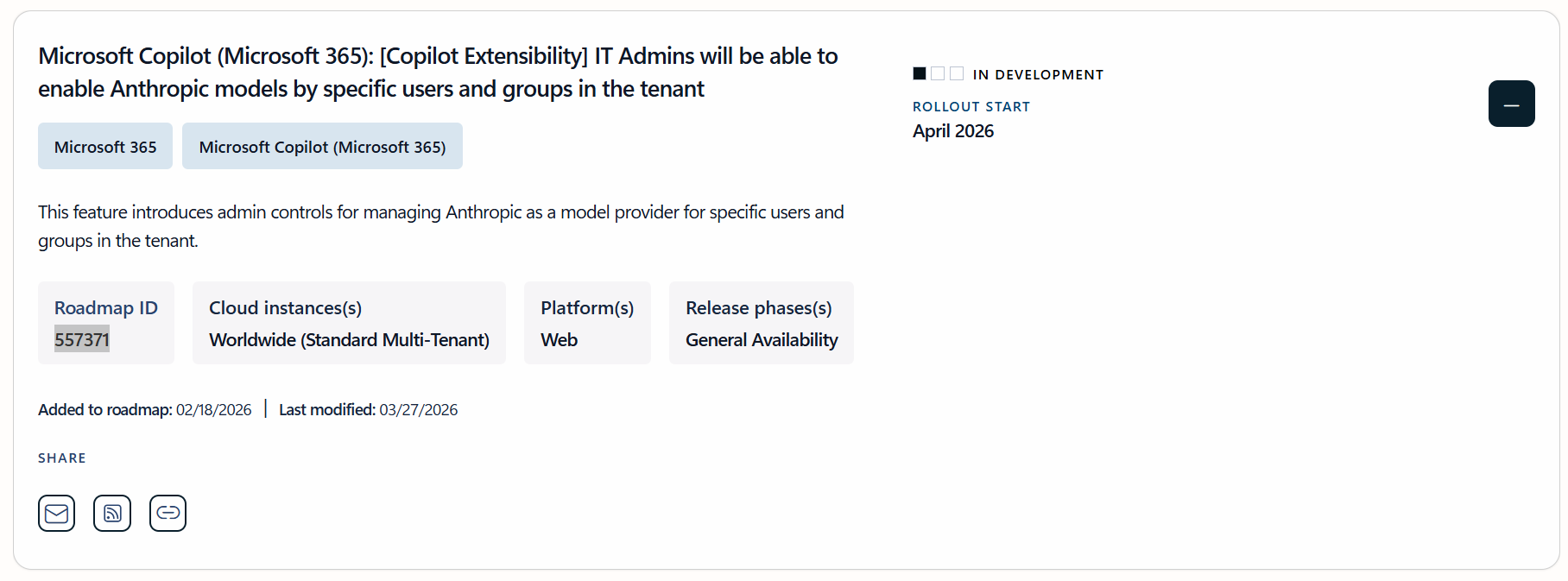
Although this feature is officially planned for release in April 2026 according to Microsoft, we already have a clear picture of the administrative workflow on how to enable and manage Claude in Microsoft Copilot.
Note: This feature is currently in the roadmap phase and will appear in your tenant starting April 2026.
1. Authorize the Subprocessor
First, you must officially "opt-in" to allow Anthropic to act as a subprocessor for your tenant.
- Navigate to the Microsoft 365 Admin Center.
- Go to Settings > Copilot.
- On the Data access page, look for the section titled AI providers operating as Microsoft subprocessors.
- Enable Anthropic as a Microsoft subprocessorand scope it to who can use it.
2. Configure User Access
You can decide who actually gets to use these models:
- All users: The "turn it on for everyone" approach.
- No users: Keep the subprocessor disabled for users or groups in your tenant.
- Specific users and groups: The recommended approach to start with a pilot group or to limit access to a specific set of users.
Final Thoughts
The addition of Claude to Microsoft 365 is a major step toward a more flexible AI environment. It allows organizations to pick the best tool for what you need, and with the addition of access control you can scope how and who can use Claude in Microsoft Copilot.
Keep reading
15 Sept 2026
Will Grok Be Available in Microsoft Copilot in the EU?
Microsoft is bringing Grok to Copilot, but the preview excludes the EU, EFTA and UK. Here is what the SpaceXAI subprocessor change means for IT.
11 Sept 2026
You Can Now Build Apps with Copilot Cowork and Copilot Studio
Have an idea for an internal app? Explore app building in Copilot Cowork and Copilot Studio, with a practical starter prompt and the checks IT should make first.
1 Sept 2026
Microsoft's Responsible AI Report: What You Still Need to Govern Yourself
Microsoft's 2026 Responsible AI Transparency Report explains its own governance work. Customers still need owners, approved use cases, evaluation and monitoring.
Comments
Loading comments…